
My Account
Find out how to manage your user profile.

You can access the My Account page by clicking the user badge located at the top right of the R2S interface.
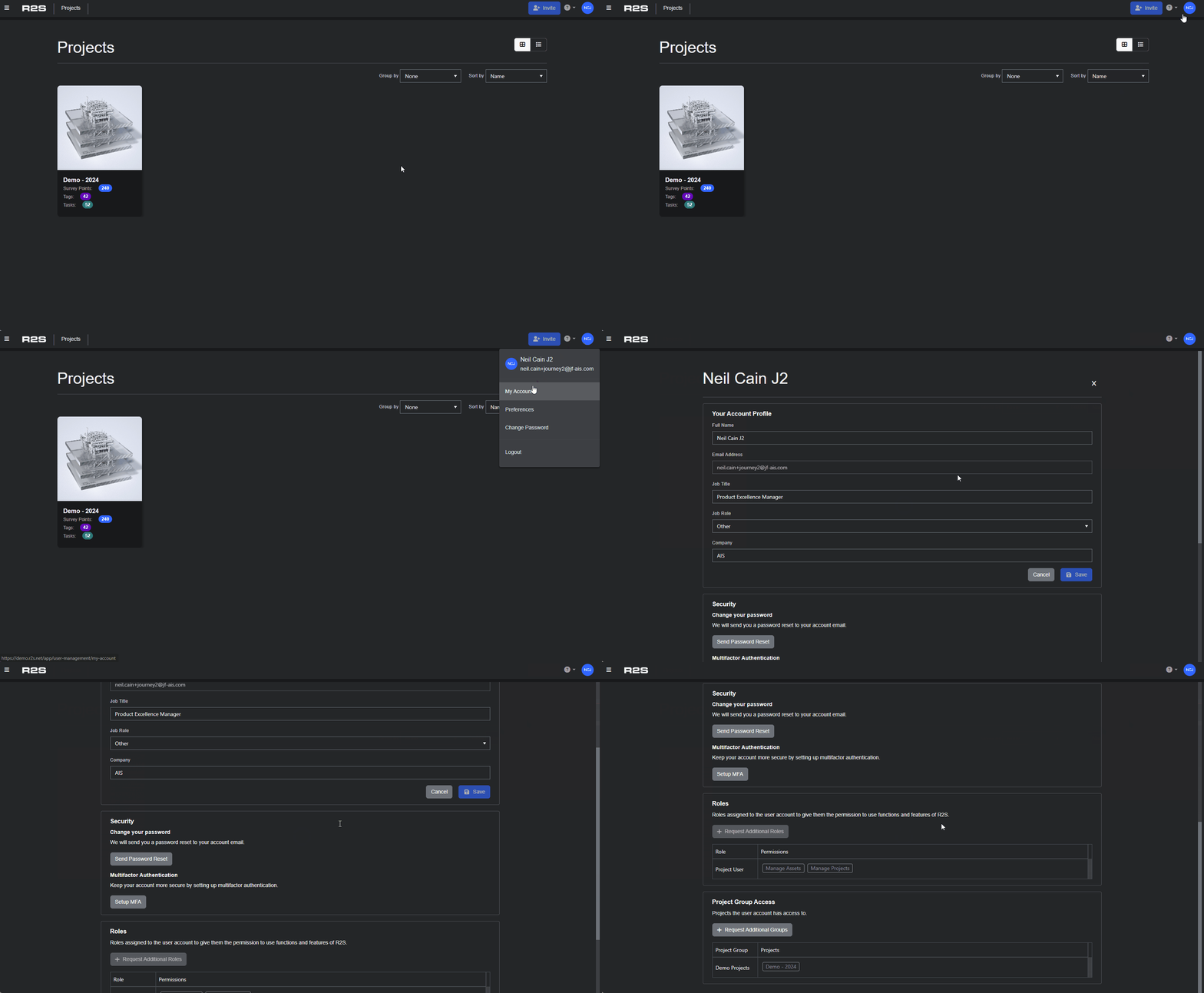
Your Account Profile
Update your name, job title, role and company here and click 'Save'. Please note, you can't change the email address associated to your account. If this is required, please contact a User Administrator or our support team here.
Security
- To change your password, click Send Password Reset. You will receive an email from support@jf-ais.com containing further instructions.
- If you've forgotten your password, you can reset it using the link on the login screen.
- If you're experiencing login issues when using Single Sign-On (SSO), please contact your company’s User Administrator or IT department for assistance.
Multifactor Authentication (MFA)
If you're not already using MFA and would like to add the additional security it offers, simply click the 'Setup MFA' button and scan the provided QR code with a compatible authenticator app.
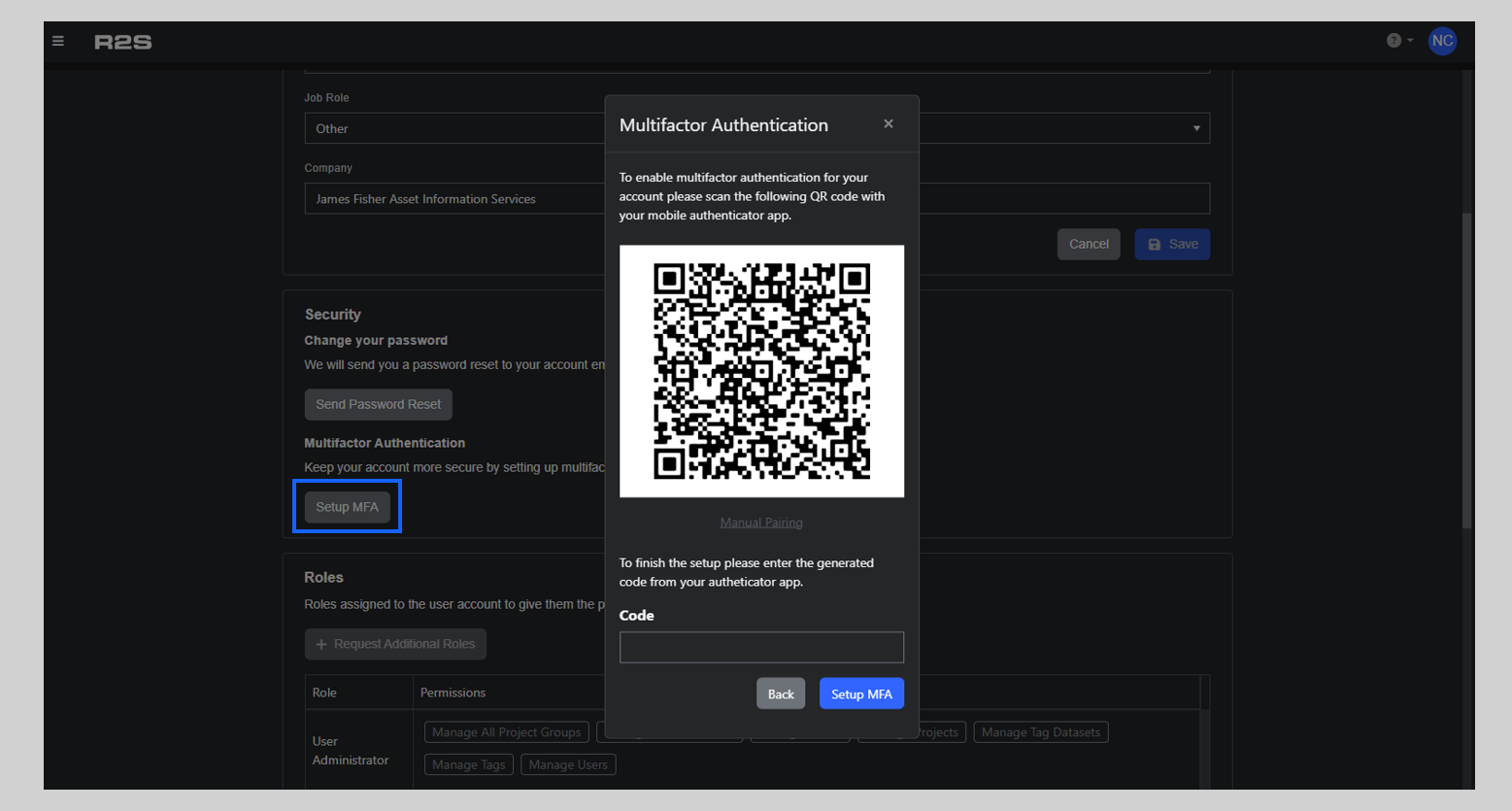
Once registered with the app, type the 6-digit code provided into R2S to complete the set-up. From this point on, you will be prompted for a code each time you log-in.
Important: you must use an authenticator app. Scanning the QR code with your smartphone camera alone will not work.
If you're already set-up with MFA and are having issues logging, please contact either your User Administrator or our support team here.
Roles
When your account is set-up you are assigned a 'Role' that determines what features and functions of R2S are available to you. In this section of the My Account page, you can see which role you've been assigned and the permissions you've been granted. Currently, the '+Request Additional Roles' is disabled, if you require a change to be made, please contact your User Administrator.
Project Group Access
This section of the 'My Account' page shows you which project group you are in and which projects you currently have access to. You can request additional access using the '+ Request Additional Groups' button.
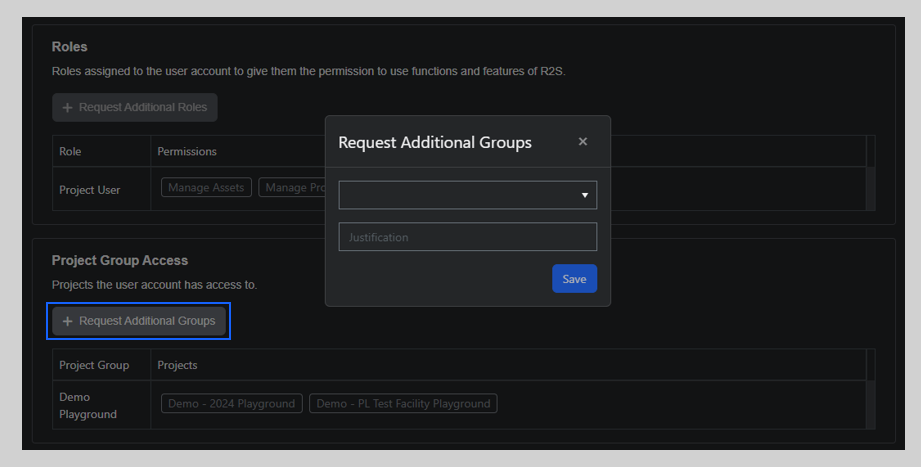
Choose the group you want access to from the dropdown list, add a short justification statement and click 'Save'.
Once submitted, an approval request will be emailed to your company’s User Administrator. You will be notified by email once the request has been approved or rejected. If approved, the next time you log-in the additional projects will become available on the Project Selection Screen.
Please note: If you have the User Administrator or System Administrator role, please see this page for further information on setting up MFA.
To find out more about Roles, see this page.