
Split Screen Mode
Learn how to open two visual model viewers at the same time.

Ever find yourself switching view modes to make comparisons or navigating in one view and then switching to another? Split screen mode lets you view 360 images, point clouds, and 3D models side by side, resulting in improved navigation and helping you build a clearer, more complete picture of the asset.
Opening Split Screen Mode.
You can split the viewer window in any combination of 360 images, point clouds and 3D models.
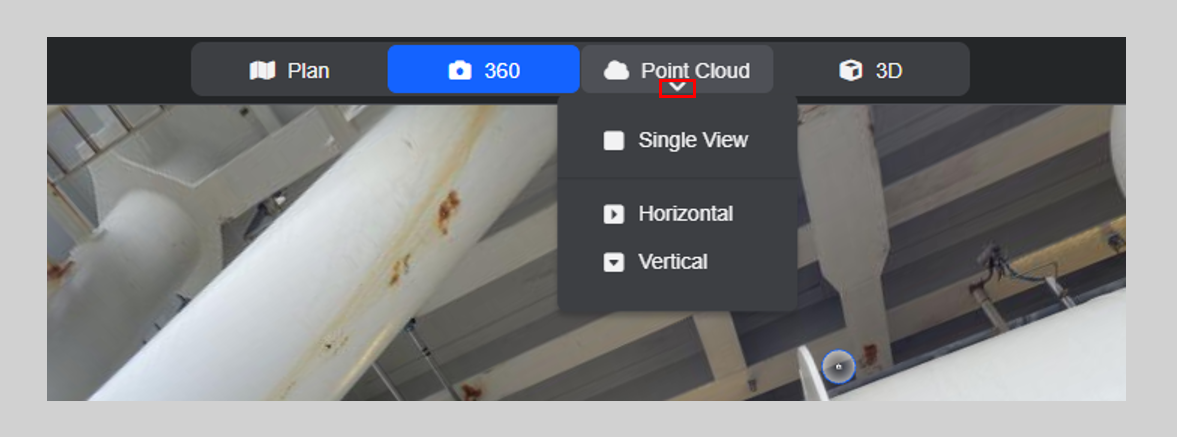
To open split screen mode, move your cursor over the View Mode button of the view you want to display in a second window. Click directly on the chevron to choose how you'd like the two views arranged.
The minimap is always available to provide a wider context of your location.
Split Screen Controls.
Here's what you can do in Split Screen Mode.
- Lock/Unlock views - when this padlock is enabled, the two views are synchronised.
- Change View Mode - change the type of data you are viewing.
- Change layout - choose a horizontal or vertical split or return to a single view.
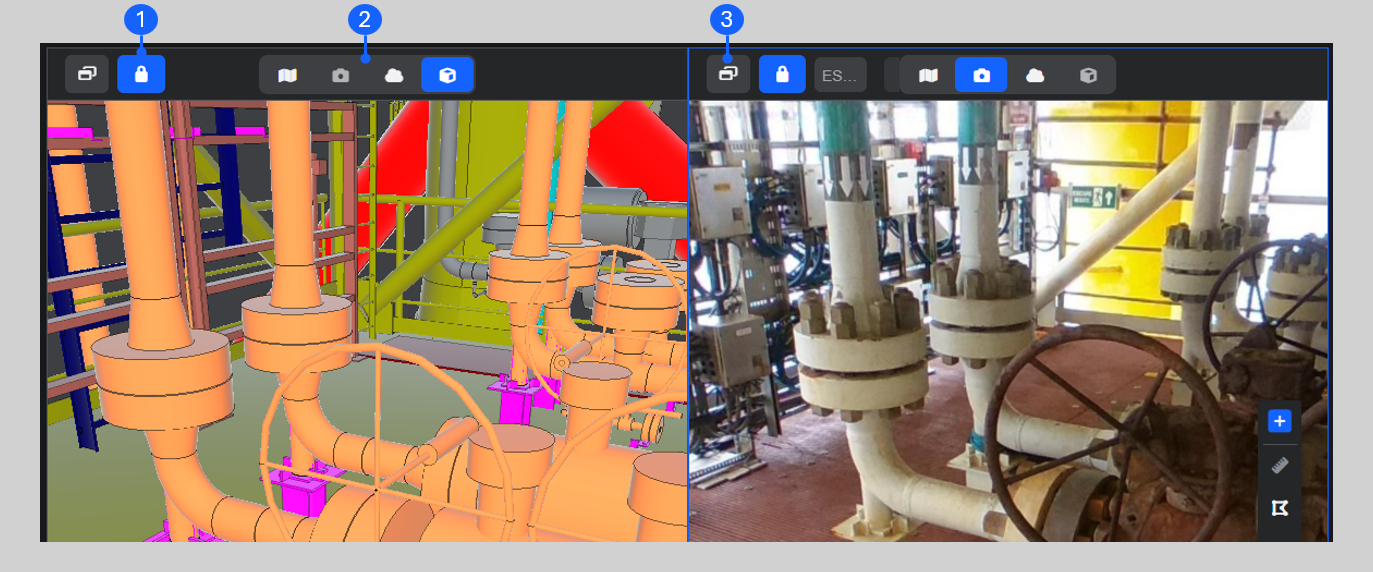
Please note: You can't open two windows of the same type (i.e. 2 x 3D windows).
Have a quick look through this interactive demonstration.
Locking and Unlocking the Views
When the padlock is enabled the two views are synchronised. This means that any movement in one window—such as panning, rotating, or navigating—will be mirrored in the other window. If the padlocks are disabled, the two views operate independently. You can then navigate to another area of the site while retaining the original view in the other window.
Re-synchronise the views at any time by clicking the padlock icon in either window.
What happens when I enable the lock?
Clicking the padlock icon in one window syncs the other window with the window you click the padlock in.
- The window you click the lock in remains unchanged.
- The opposite window updates to match its position, location, and viewing direction.
Have a look through this interactive demo to better understand how the lock feature works.
Please note: If you have a 360 image open and you free-fly in either a 3D model or Point Cloud window, the views unlock automatically.
Now you know how to use split screen, why not have a look through the Navigation guide for more tips and help.
Remember, if you are having trouble using any tool or feature in R2S please contact our support team here.