
Adding Users
Explore how to add users to R2S.

R2S provides a flexible and secure way to add new users. We believe that broader access drives greater value, so there's no limit to the number of user accounts that can be created. It doesn’t have to be limited to your own staff either, accounts can be distributed to external users, such as contractors or other stakeholders, depending on your organisation’s needs.
Security remains a top priority, with support for multiple authentication methods to ensure the highest standards are maintained.
Inviting Users
Invitations can be generated by User Administrators or by any user clicking on the User Invite button, if activated (see Server Management section for further details).
Invite by User Administrator
- Open the Administration page and select 'Invites'.
- Click the '+Invite Users' button.
- Enter the work email address of the user and either press return or click on the 'Add' button. To add multiple users, enter their email addresses separated by semicolons.
- Click on the Project Group box to open a dropdown list of all available groups and select one (or multiple) groups.
- Click on the 'User Roles' box to select the roles required.
- Add a note, if required.
- Click 'Send'.
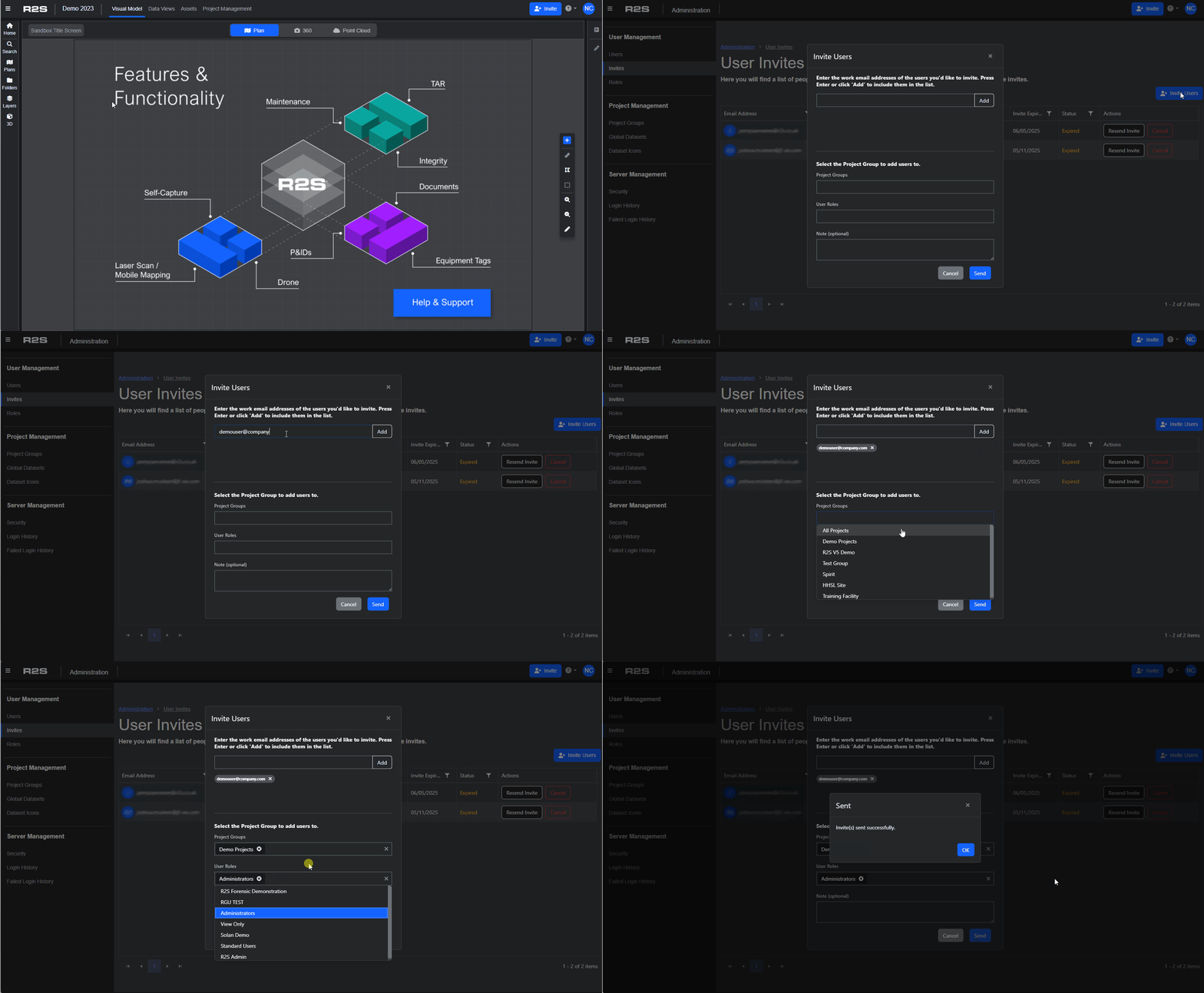
Please note: if Allowed Domains are set up on the server, only email addresses containing those allowed domains will be accepted. If this has been enabled, you'll see a list of these domains in the Invite Users panel.
Each invited user will receive an automatic email with a link to complete their registration. The registration process is quick and involves filling in a short form and setting up their login method. The authentication method is set at the server level and can be username and password, multi‑factor authentication (MFA), or single sign‑on (SSO).
See Server Management for further information on authentication and allowed domains.
User Invite Button
When this feature is enabled, an Invite button appears in the R2S interface for all users. This allows users to invite colleagues directly, without needing to contact a User Administrator.

The invitation process follows the same steps as described above, with one important difference: users invited this way must be approved by an appointed User Administrator before they can complete their registration.
When a user invites a colleague in this way, an automatic email is sent to the User Administrator requesting approval—unless the invitee belongs to an approved (whitelisted) domain.
User Requests
Access requests for R2S can also be made using an online request form, available through your company IT department or via a link on the login screen.
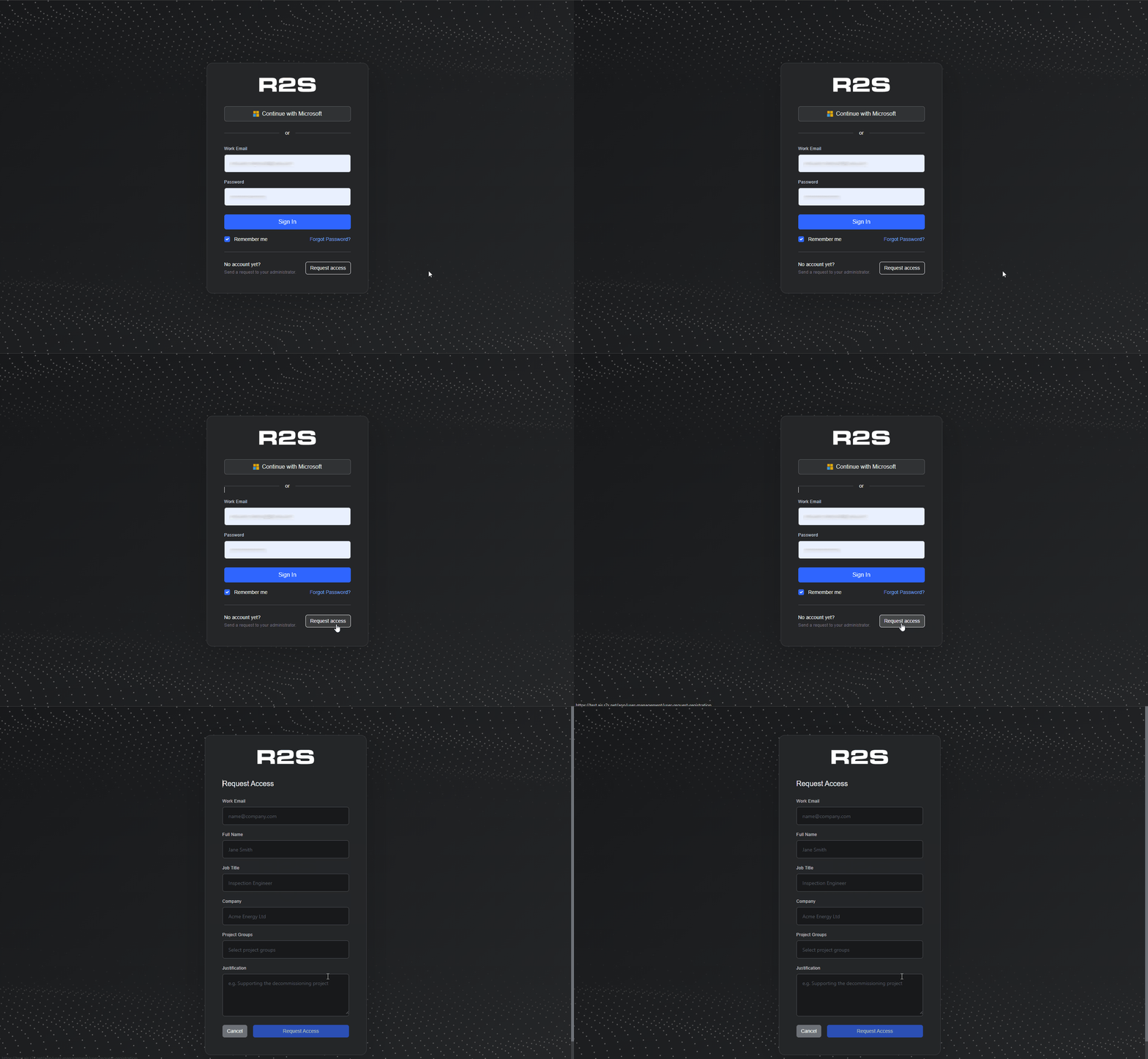
When completing the form, users must provide a valid work email address and a brief justification for access. Submitting the form automatically notifies User Administrators, requesting approval. If approved, the requester will receive an invitation to complete registration; if declined, they will receive an email explaining why.
If the Whitelisted Domains feature is enabled and the requester’s email address belongs to an approved domain, the approval step is bypassed and the user is immediately sent an invitation to complete their registration.
For more information on whitelisting domains, see Server Management.
If you have the User Adminitrator role, please see User Management for further information.