
Blend Mode
Learn how to blend the 3D model with the 360 and Point Cloud Viewer windows

Blend Mode brings 3D models, 360° imagery, and point cloud data together in a single view, providing greater context and making it easier to compare datasets and validate information.
To activate Blend Mode, click on the chevron next to either the 360 or Point Cloud view mode buttons in the main viewer window.
In the drop down, simply move the Opacity Slider from 0 or click the On button.
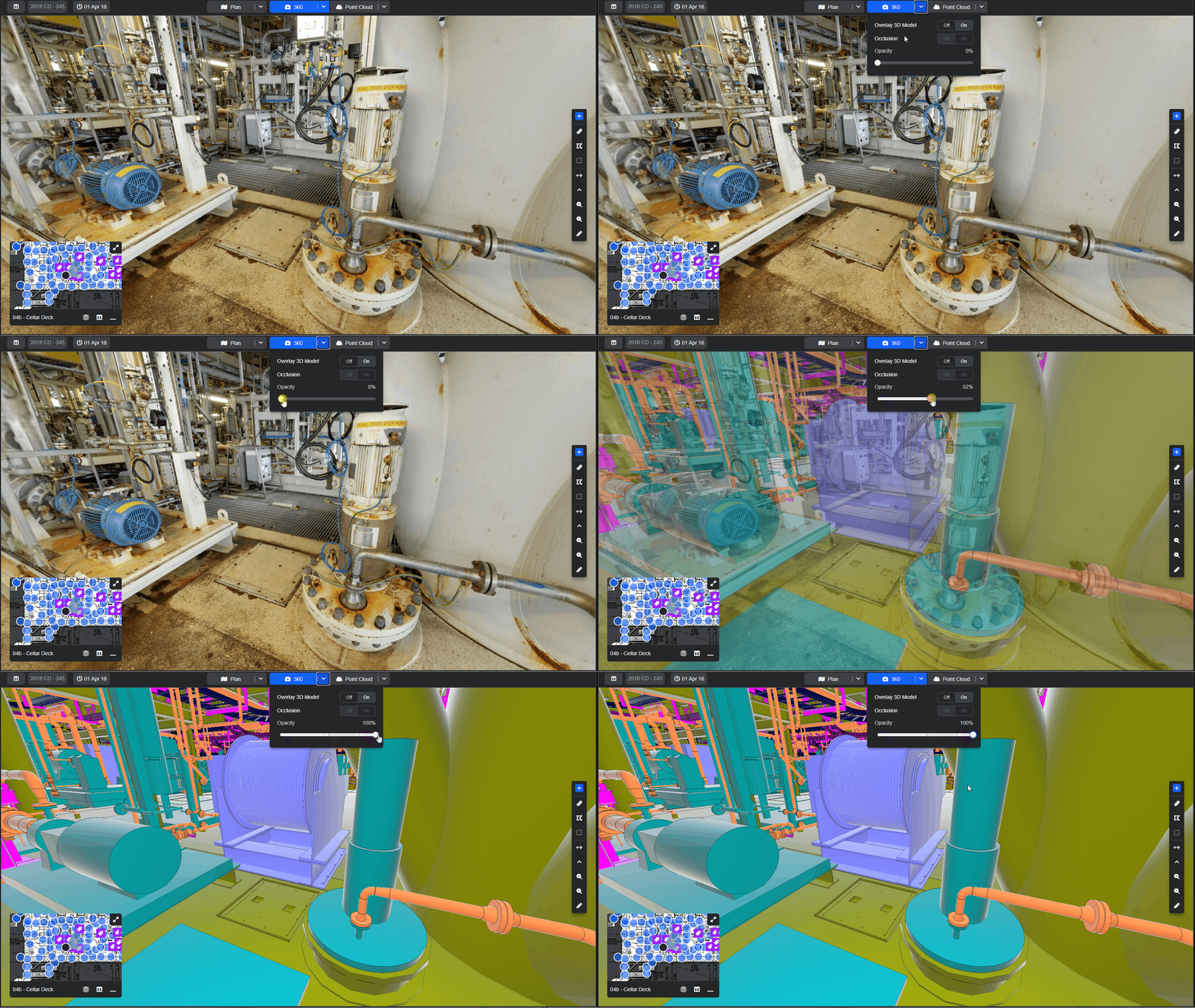
Navigation in Blend Mode follows the current viewing mode. When viewing 360° imagery, navigation is point-to-point; when viewing the point cloud, free-fly navigation is available.
Occlusion
Enable Occlusion for a clearer and more intuitive visualisation. By automatically hiding background elements that would normally be obscured from view, Occlusion creates a more unified representation of the site and makes comparisons between datasets easier.
Note: This feature is only available if a point cloud dataset is available.
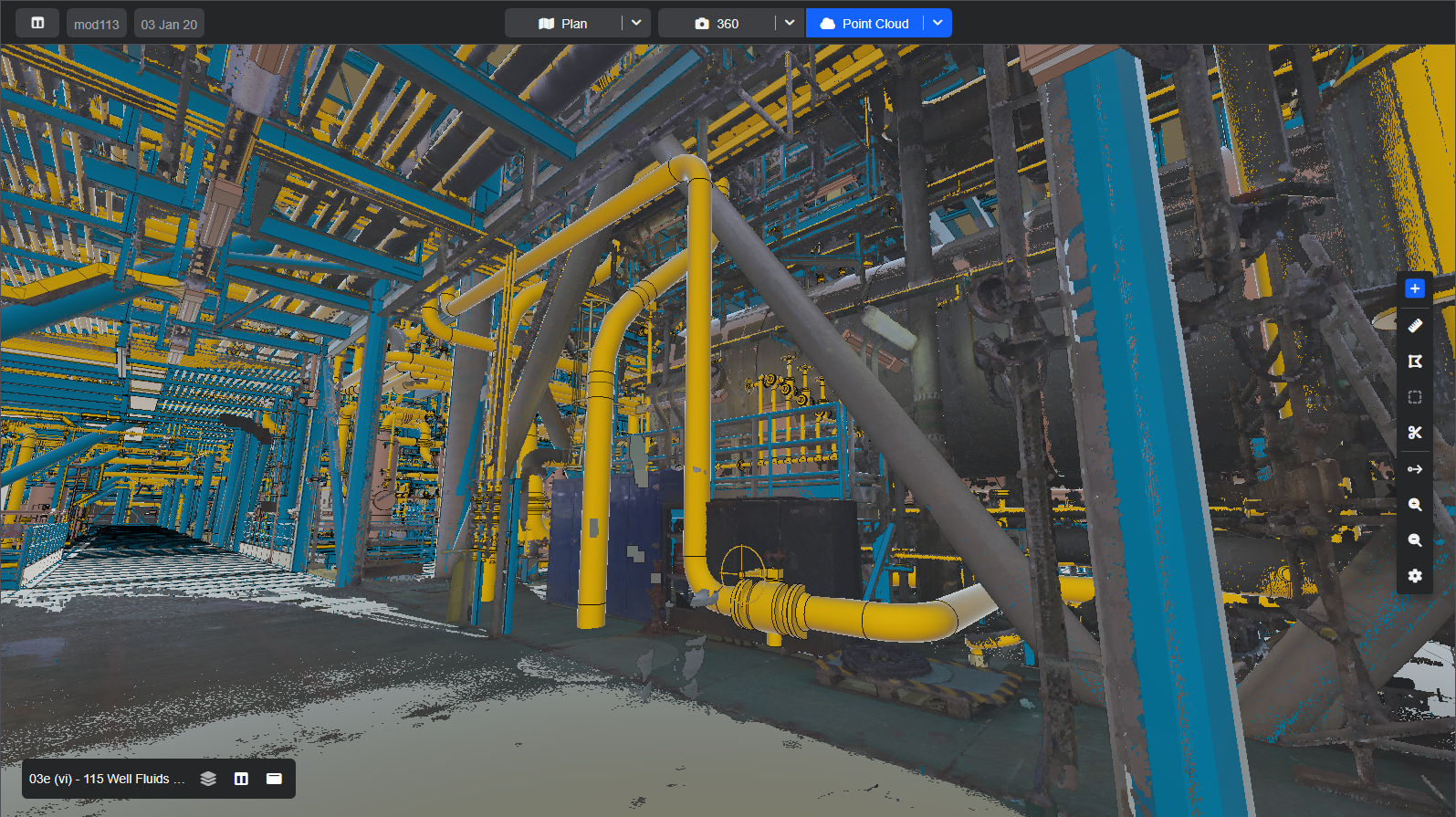
Notice in the image that some elements of the model are clearly in front of the point cloud and others behind.
Tip: Blend Mode can be resource-intensive, particularly when displaying point cloud data or using Occlusion. If you experience reduced performance, try lowering the point cloud quality setting.
For more 3D model viewing options, see the 3D Model guide.
Note: If you are having trouble using any tool or feature in R2S please contact our support team here.