
Multifactor Authentication (MFA)
Information and setup for Multifactor Authentication

MFA Basics
System Administrators can manage Multifactor Authentication (MFA) settings across their server. This gives organisations more control over their security posture, with flexible options to match different user and compliance needs.
MFA can be configured in three modes:
- Enabled — All users are required to set up MFA at login. The setup process is simple: users scan a QR code with any standard authenticator app and follow the on-screen steps.
- Optional — MFA remains available, but it’s up to individual users to enable it (or User Administrators can enable it selectively for certain accounts).
- Disabled — MFA is turned off, and users authenticate with just their username and password.
This means it's easy to enforce strong authentication practices — whether organization-wide or on a case-by-case basis.
Setup
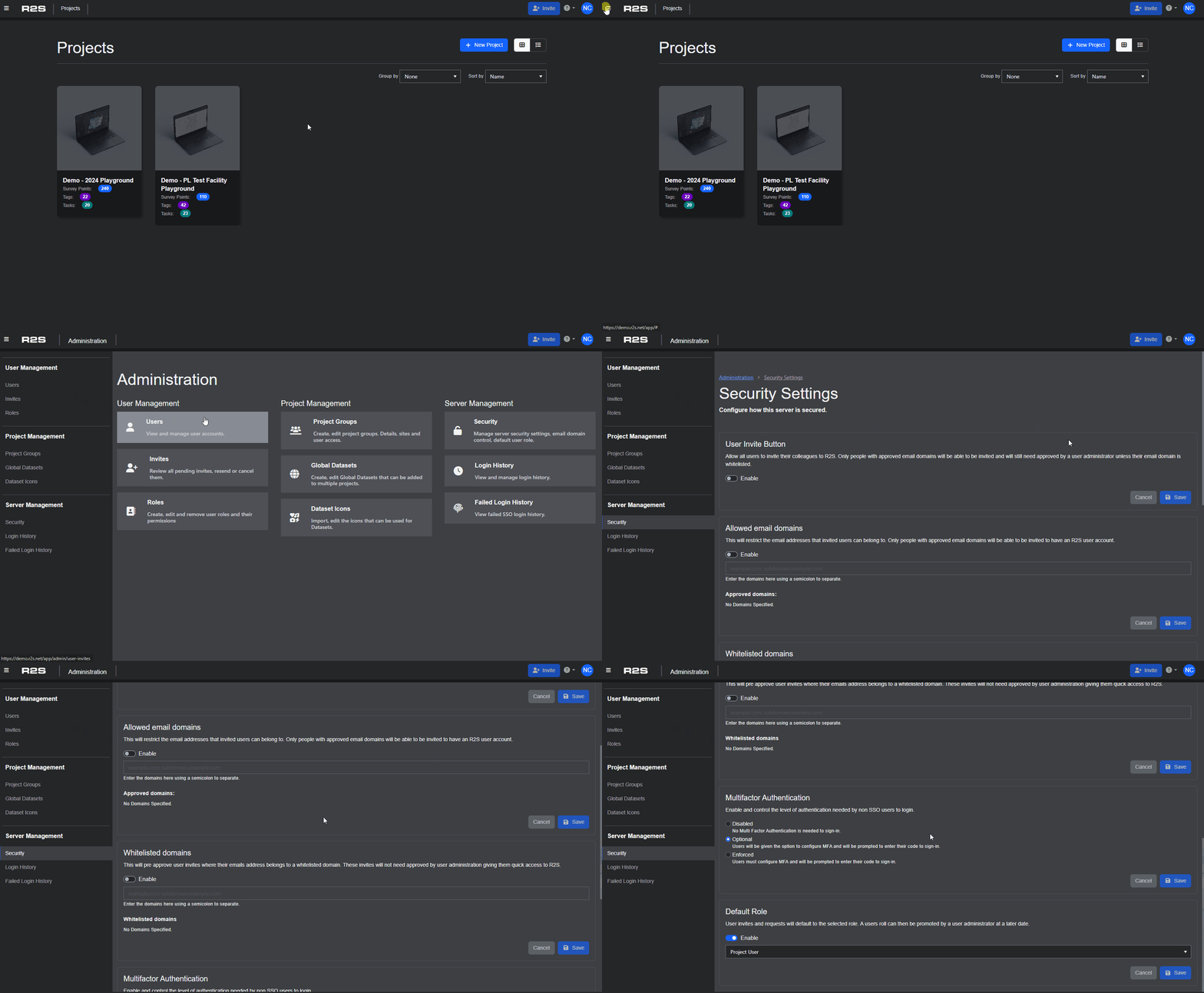
Multifactor Authentication settings can only be configured by System Administrators. If you have this role, get started by opening the Administration page.
- Under Server Management select Security.
- Scroll down to the Multifactor Authentication section.
- Choose the authentication level that fits your organization’s needs:
- Disabled - No Multi Factor Authentication is needed to sign-in.
- Optional - Users will be given the option to configure MFA and will be prompted to enter their code to sign-in.
- Enabled - Users must configure MFA and will be prompted to enter their code to sign-in.
Once set, your chosen MFA policy will apply across the server, helping you enforce the right level of security for your environment.
Enforcing MFA for Specific Users
When MFA is set to Optional, User Administrators still have the ability to enforce MFA on a per-user basis. This is useful if you want to require MFA for high-privilege accounts or specific roles, without making it mandatory for everyone.
To enforce MFA for an individual user:
- Go to Menu > Administration > Users.
- Select the user you want to manage.
- In the Security section, scroll down to Multifactor Authentication.
- Toggle Enforce Multi-Factor Authentication to require MFA for that user.
You can also use this section to reset MFA if the user needs to re-register their device — for example, if they get a new phone or lose access to their authenticator app.
Please note: for information on how to managing your individual user profile, see My Account.