
Linking Annotations to Tags and URLs
Learn how to connect information together in R2S.

Annotations are a great way to add context to your visual model and share project and asset information with your team. To make them even more valuable, you can link annotations to Tags, Tasks, and external URLs, helping you connect information together.
You can link tags to annotations when creating them or by editing existing annotations.
Linking Tags to Measurements
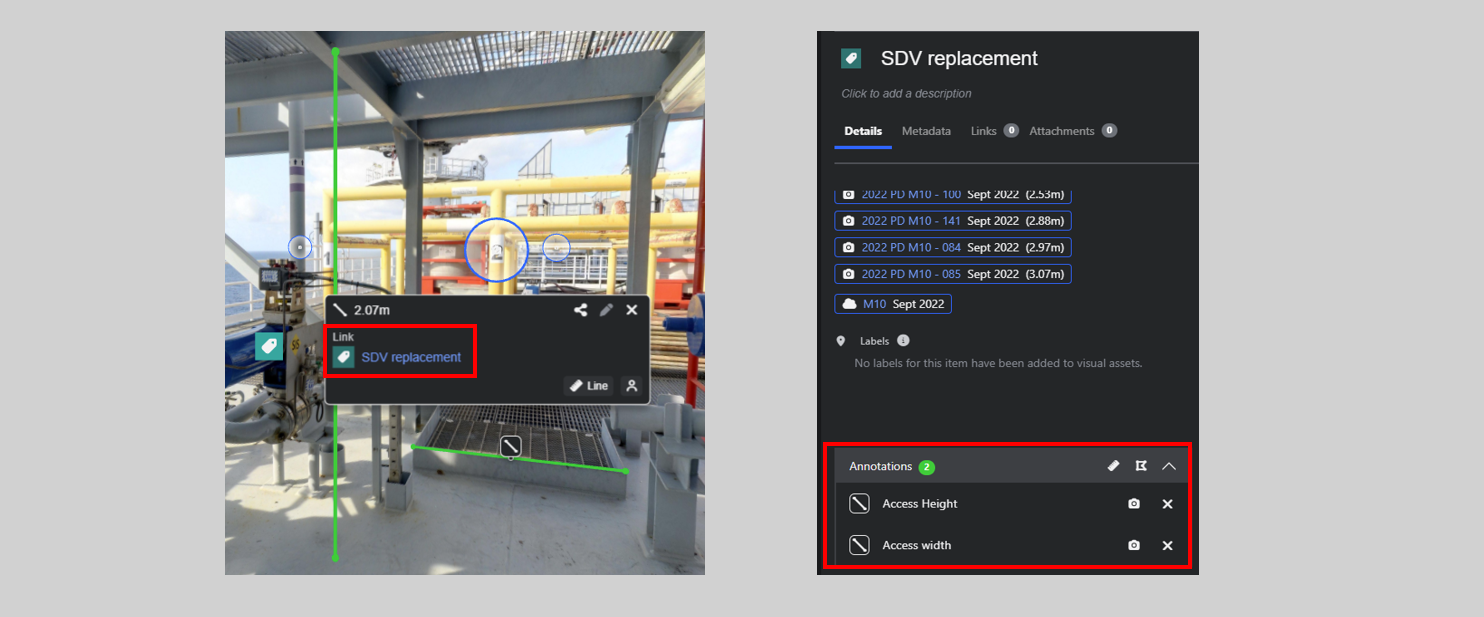
In the Measurement Panel.
- Open the Link to dropdown list.
- Start typing the tag name or pick directly from the dropdown list.
- Click Save.
Once linked, the tag can be accessed from the Measurement pop-out card, while the corresponding annotation will appear in the Details tab of the Tag panel.
Linking Tags to Markups
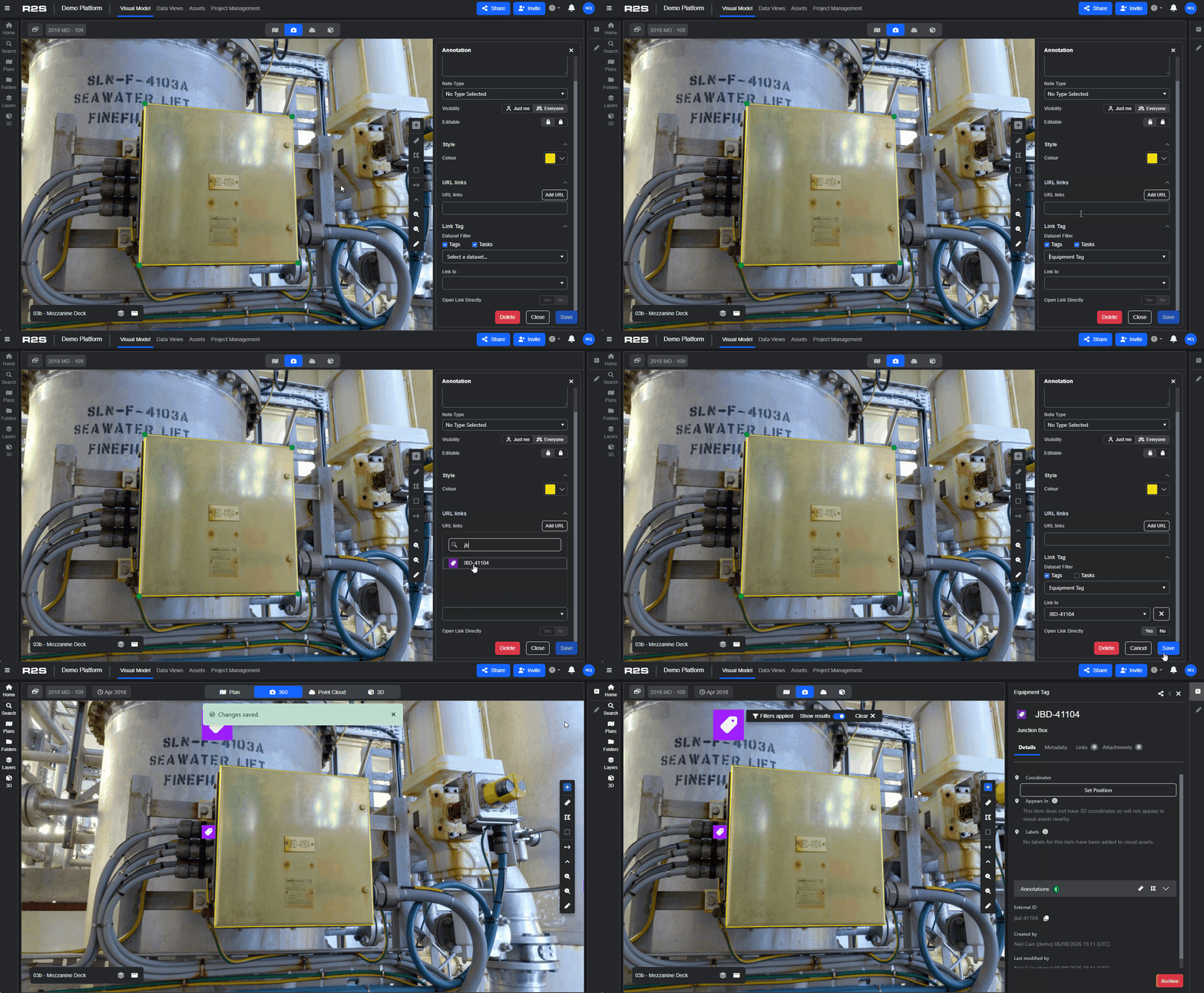
In the Annotation Panel, use the Link Tag section
- Use the filtering options to narrow your search to specific datasets (if required)
- In the Link to box, use the dropdown to search the filtered list or,
- Type the name of the tag if you know it.
Open Link Directly
If 'YES' is selected, when you click on the markup, the Tag panel opens showing the Tag details.
If 'NO' is selected, clicking on the markup will launch a URL if one has been added.
You can also add annotations directly to a tag via the Tag Panel (see Adding Annotations to Tags).
Linking a URL.
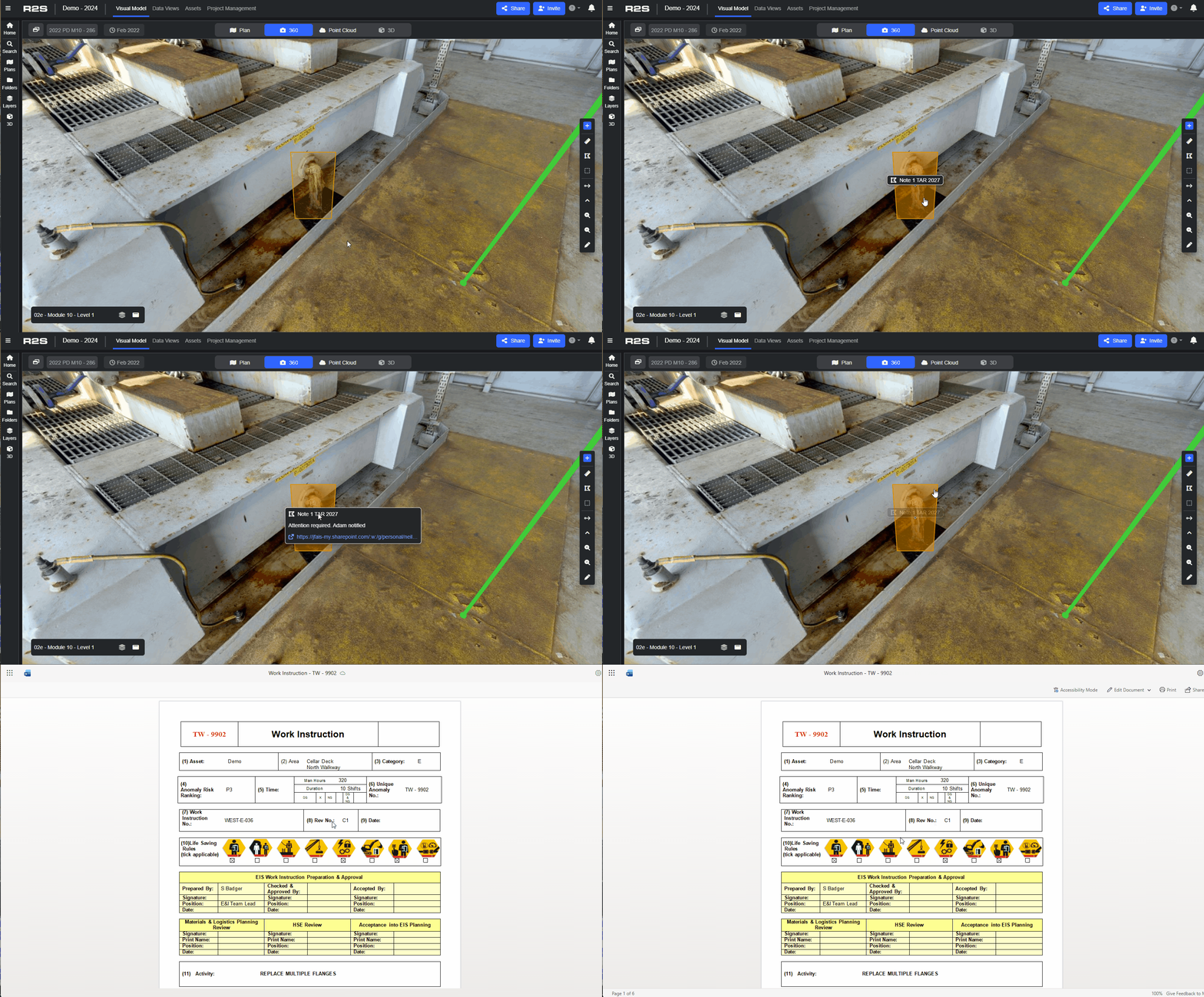
Markups can also be linked to URLs allowing you to access external documentation or websites directly via the Markup.
In the Annotation Panel, add the URL (or multiple URLs if required) and click Save.
Now, when you mouse over the Annotation marker, the URLs can be selected from the pop-out card. Alternatively, the URL will launch automatically by clicking on the Markup, if there is no linked tag.
Now you know how to add annotations to tags, have a look at Tag Panel - Links Tab to learn how to connect Tags and Tasks.
Note: If you are having trouble using any tool or feature in R2S please contact our support team here.