
Plan View - Display Options
Discover the options for viewing information on the Plan

You can change how information is displayed on the plan to suit your needs. Hotspots can be grouped to reduce visual clutter, or colour-coded by date or height to make patterns and trends easier to identify.
Grouping
Open the Layers Panel and click the Group Asset Hotspots on Plan toggle.
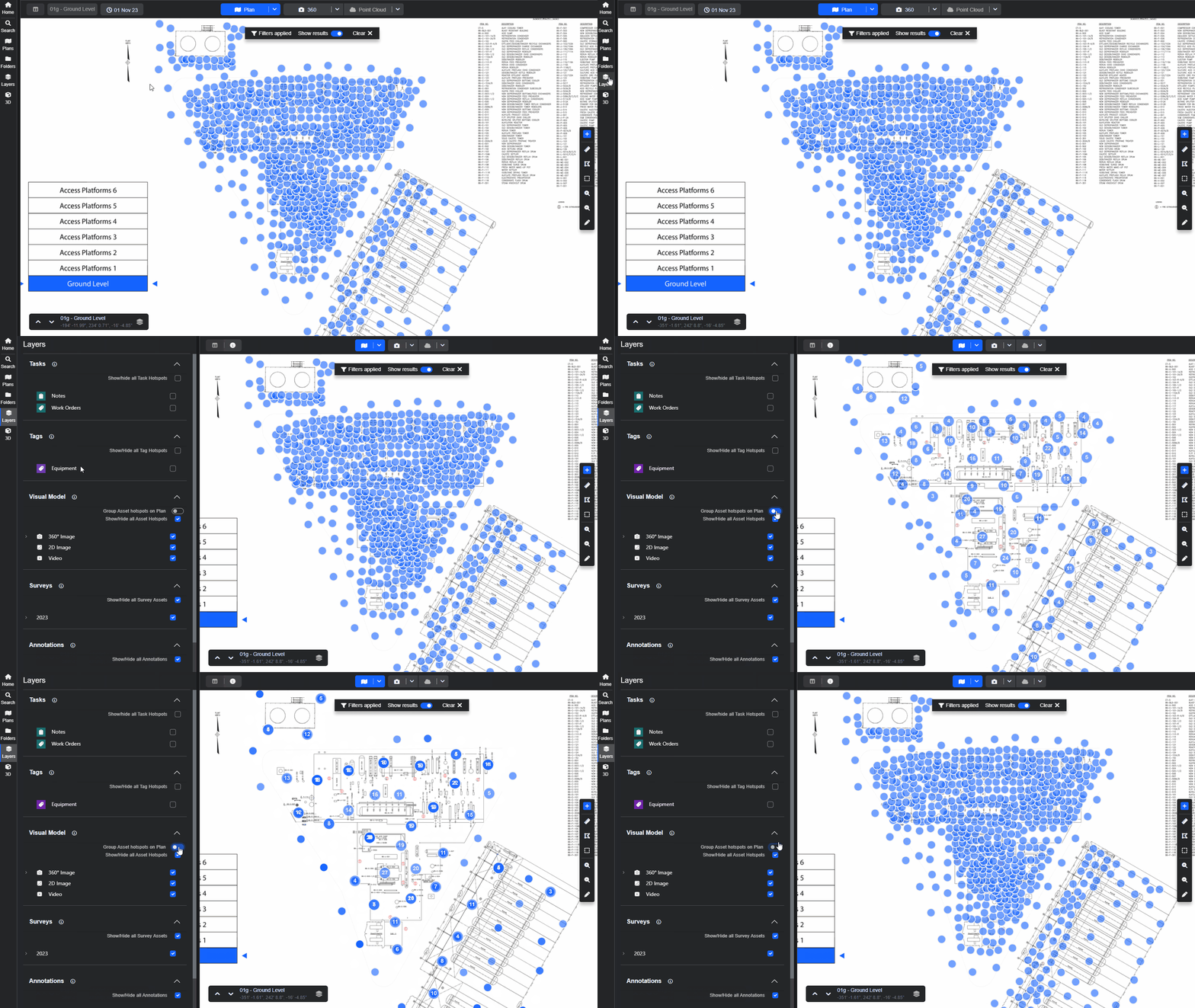
When grouped, either zoom in to reveal more hotspots or click directly on a group to expand it. Your selected view settings are remembered between sessions.
Colour Coding
Click on the chevron next to the Plan View button in the main viewer window to see the available options. Notice the hotspots change depending on the setting chosen.
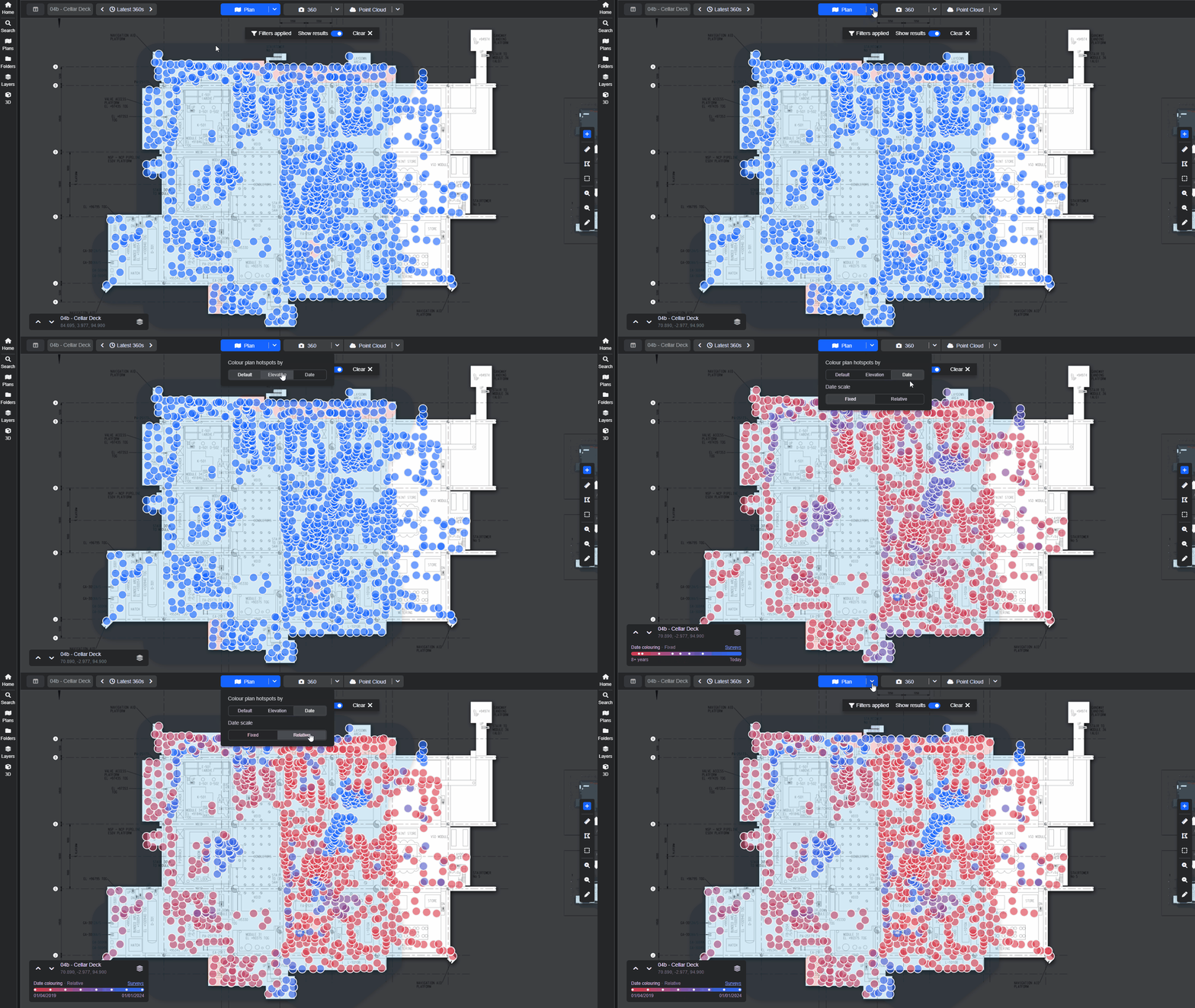
Changing these options updates the Plans Info Pane and Minimap, displaying a colour key and additional controls.
Elevation
This colour coding denotes the height of the 360.

Date
This colouration shows a timeline of when different surveys were carried out.

See the Plan View - Split Screen guide to learn more about working with plans in R2S.
Note: If you are having trouble using any tool or feature in R2S please contact our support team here.