
Share Button
Learn how to quickly share views and tag Information.

You can easily share your current view with other R2S users using the Share button. This is a great way to ensure you and your team are aligned when discussing project work or planning. The generated link can be added to emails, work packs, ERP systems, spreadsheets, or even a Teams chat—helping everyone stay on the same page and looking at the same information in R2S.
You can also share tags, tasks, and data views making collaboration simpler. Embed these links into other documents or systems, and you can jump straight from static files or third‑party tools into R2S and view equipment and work items in the context of their real‑world locations.
Sharing Your View
Click the Share button in any view mode to copy a link to your clipboard. This link captures your exact view, letting you or other R2S users return to the same location instantly.
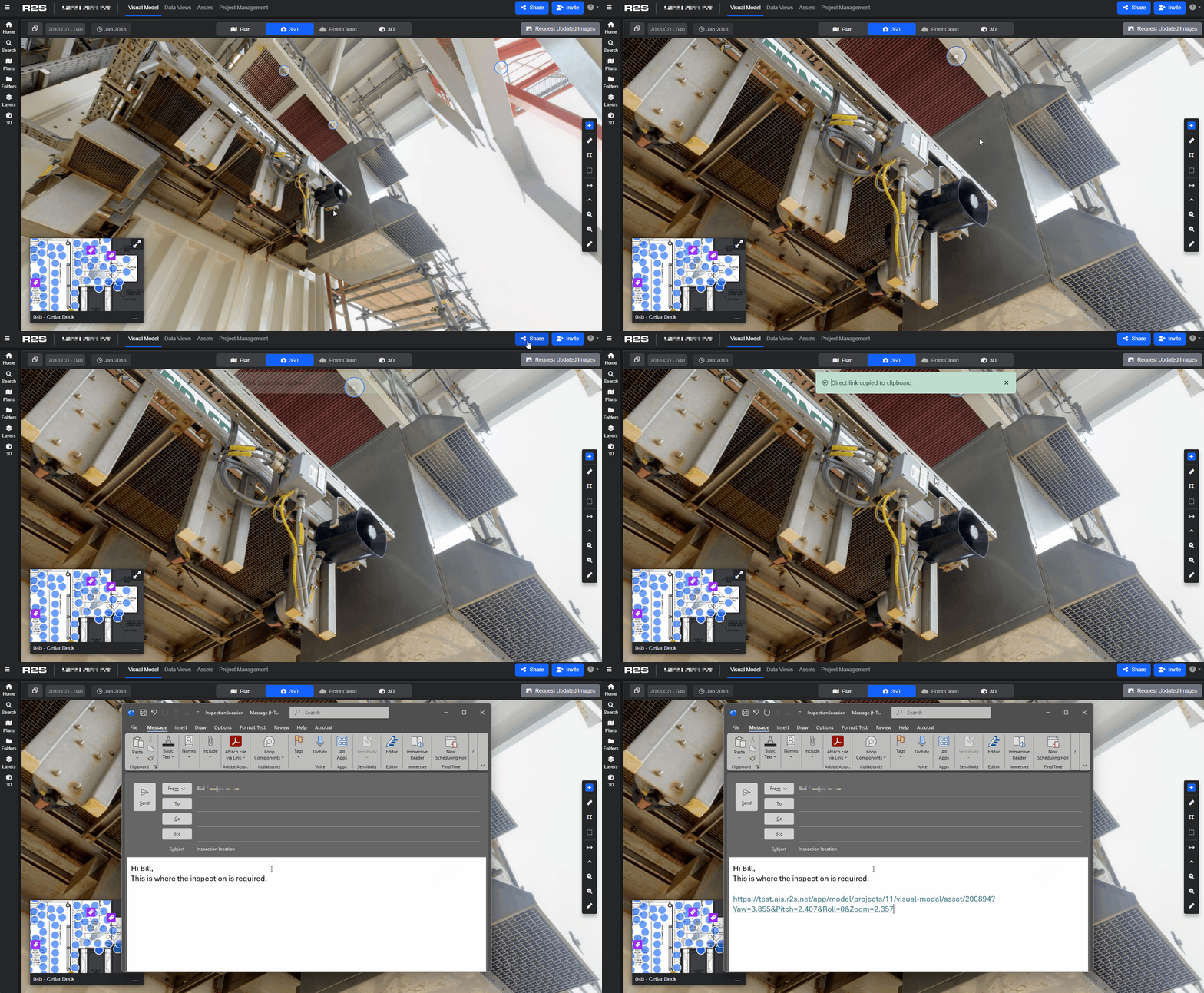
Please note: An active R2S user account is required to access the link.
Sharing Tags and Tasks
Use the Share button in the tag panel to generate a dynamic link that can be shared with other users or embedded in work documents or other systems. Users accessing these links will automatically see the tag or task in the nearest 360 image with the tag panel open. If a 360 image isn't available within a certain radius, the tag will be displayed on the plan view instead.

For more information on this panel see Tag Panel Overview.
Sharing in Data Views
The link generated by the Share button in Data Views captures your entire configuration—including columns, filters, and groups. You can use it to share a specific setup with other users or to save the view for quick access later.
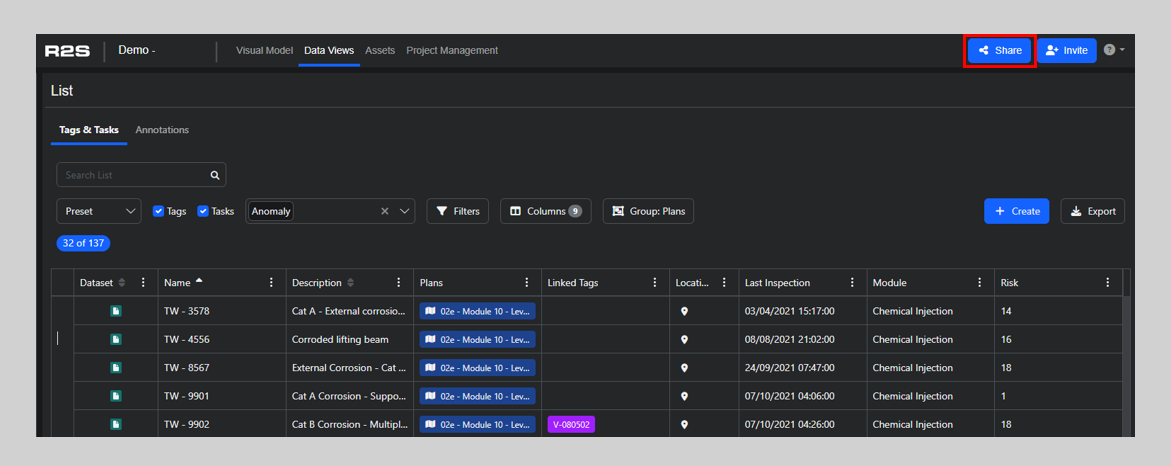
See Data Views for further information.
Note: If you are having trouble using any tool or feature in R2S please contact our support team here.