
3D Markup Tool
Learn how to annotate plans, images and point clouds with 3D objects.

3D markups have dimensions and 3D coordinates so that they can be viewed from multiple angles and easily maniplulated in the viewer.
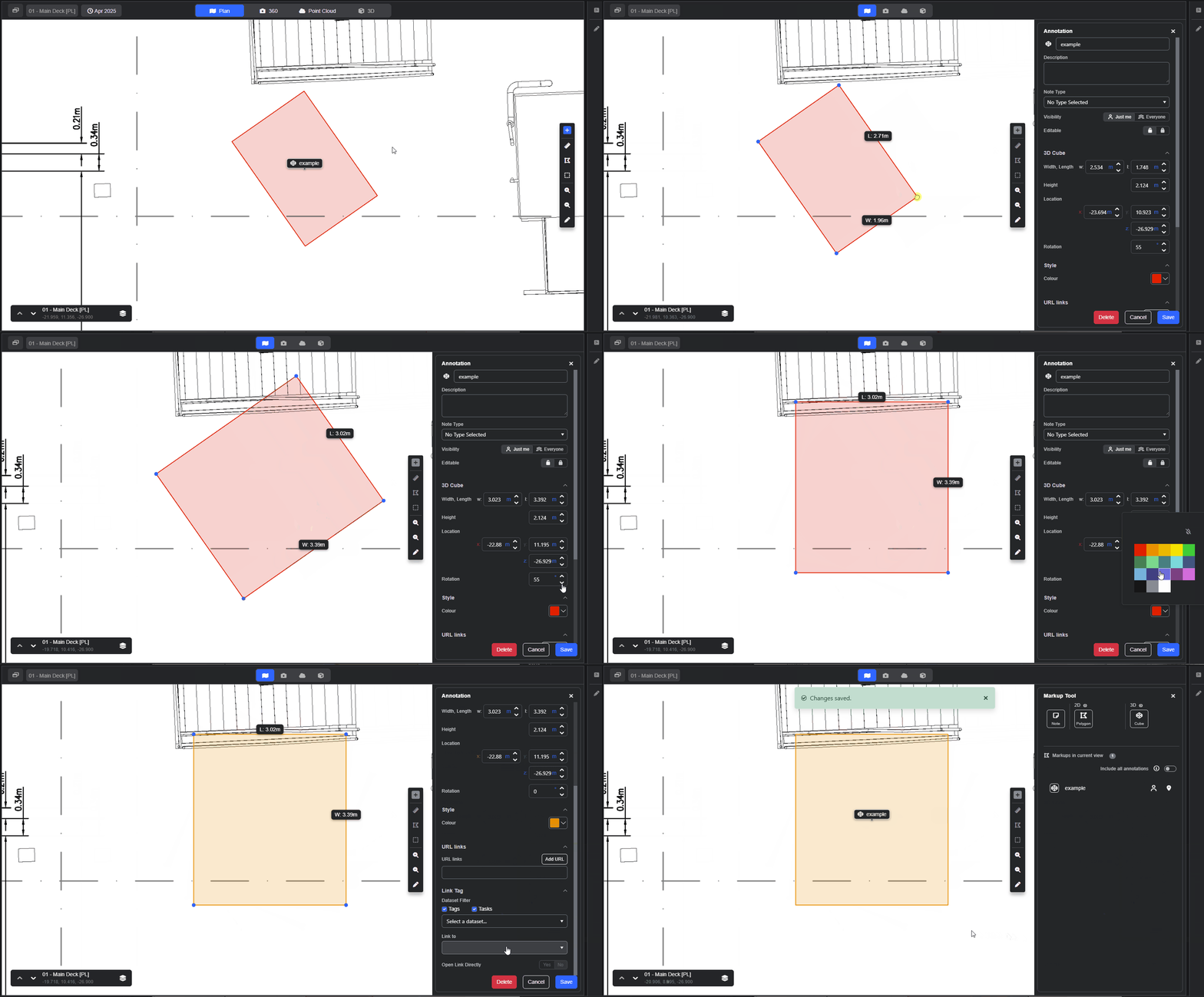
Adding 3D markup in Plan Mode.
- Select the Markup tool from the toolbar to open the Markup Panel.
- Select Cube from the 3D options.
- Click on the plan to select the first corner point.
- Select a second point to define the width and length.
- Add the required height and press return or tab key.
- If required, adjust the rotation.
- Select a colour.
- Add a name (required).
- Choose a visibility setting (the default is Just me).
- Pick whether you want to lock the markup.
- Click save.
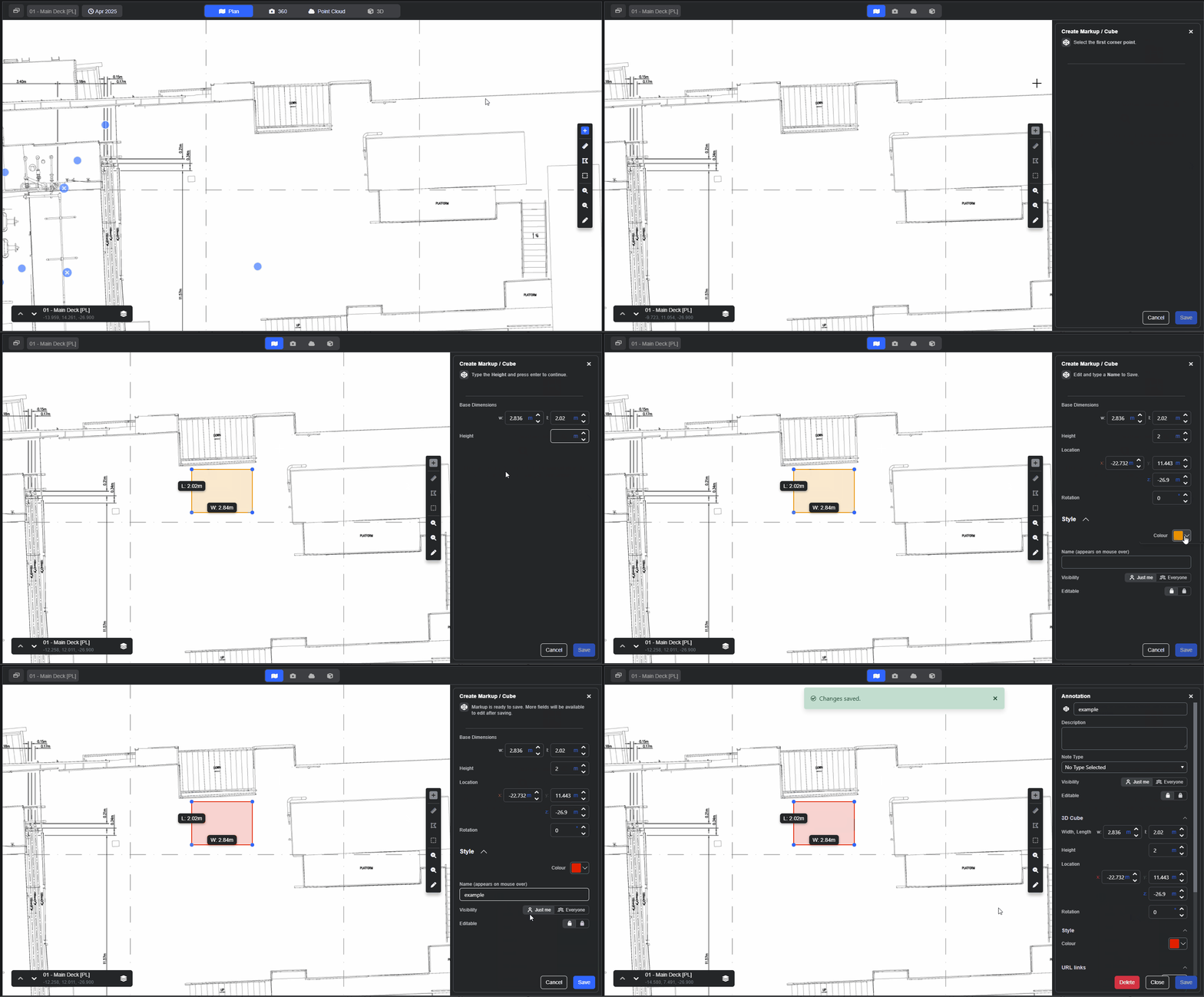
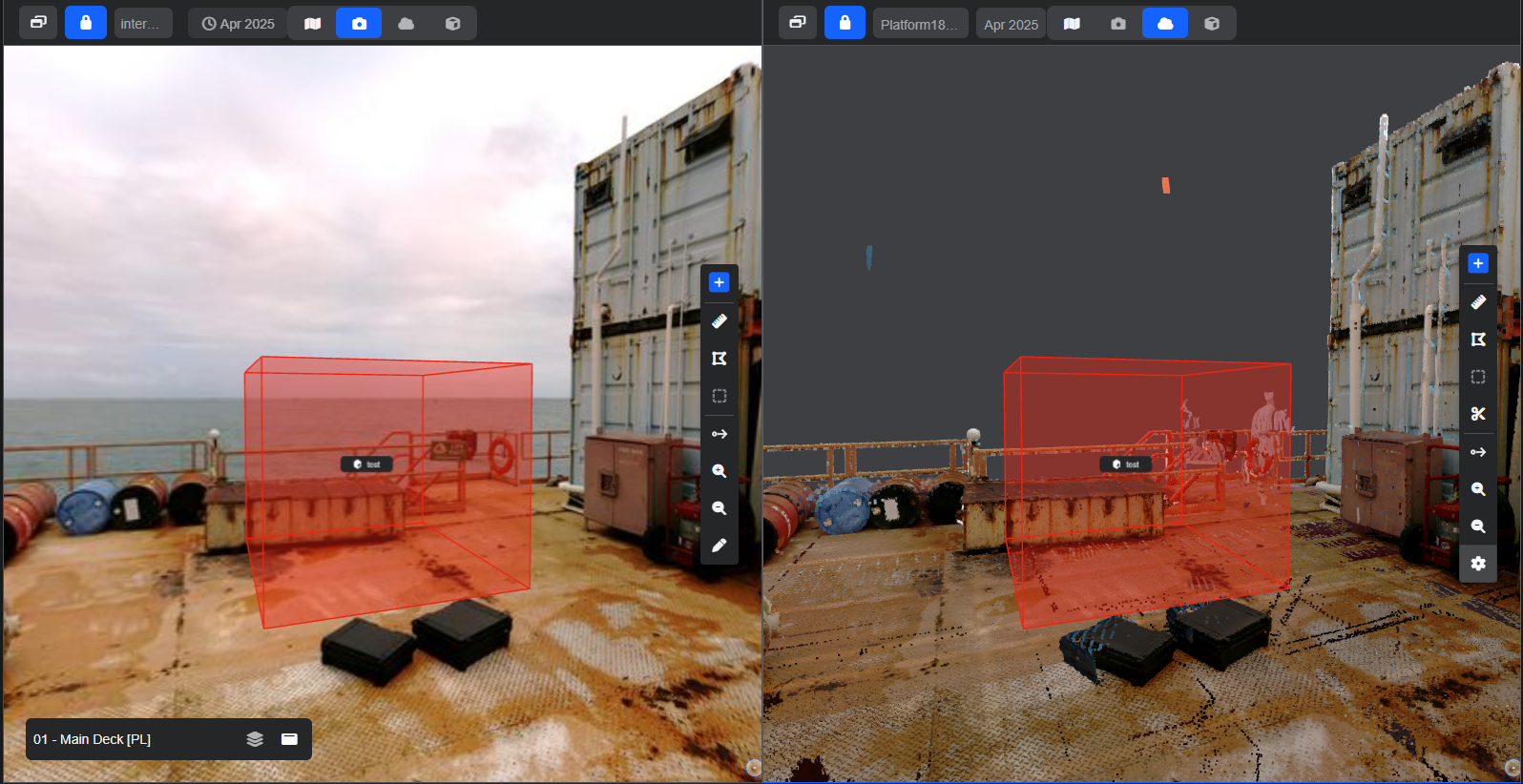
Once the 3D markup has been saved, it will be visible in both the 360 and point cloud views.
Additional Options
Once you've saved your markup, you can link it to Tags, Tasks, or URLs to provide additional context and improve navigation.
The learn more, see Linking Annotations to Tags.
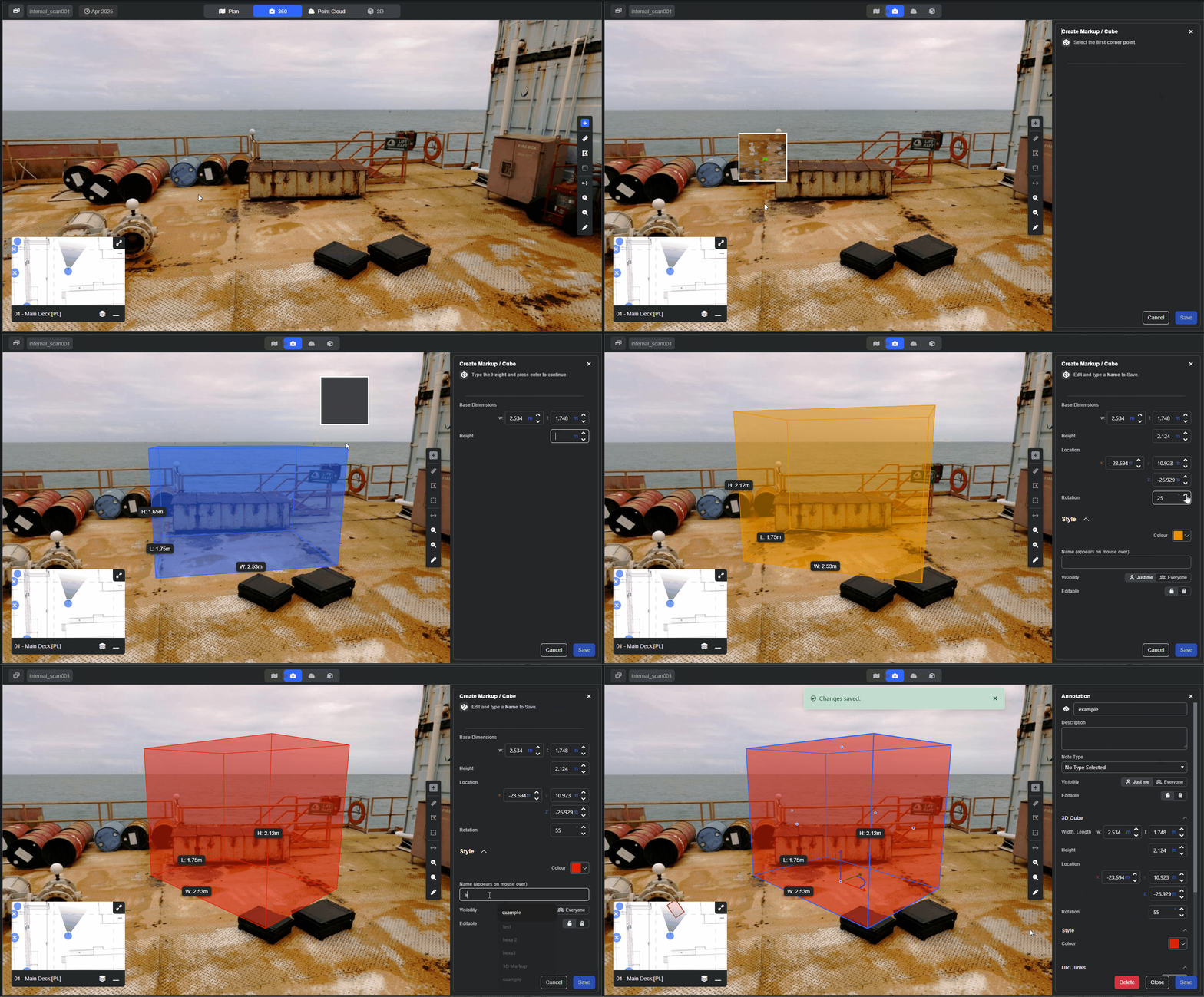
Adding a 3D Markup in 360 or Point Cloud Mode.
- Open the Markup Panel.
- Select Cube from the 3D options.
- Click on the viewer window where you want the markup to start.
- Define the width and length by dragging the blue square to the desired size. Click to confirm.
- Select the desired height by moving the mouse in an upward direction. Click to confirm.
- Adjust the rotation, if required.
- Select a colour.
- Add a name (required).
- Choose a visibility setting (the default is Just me).
- Add a name (required).
- Click save.
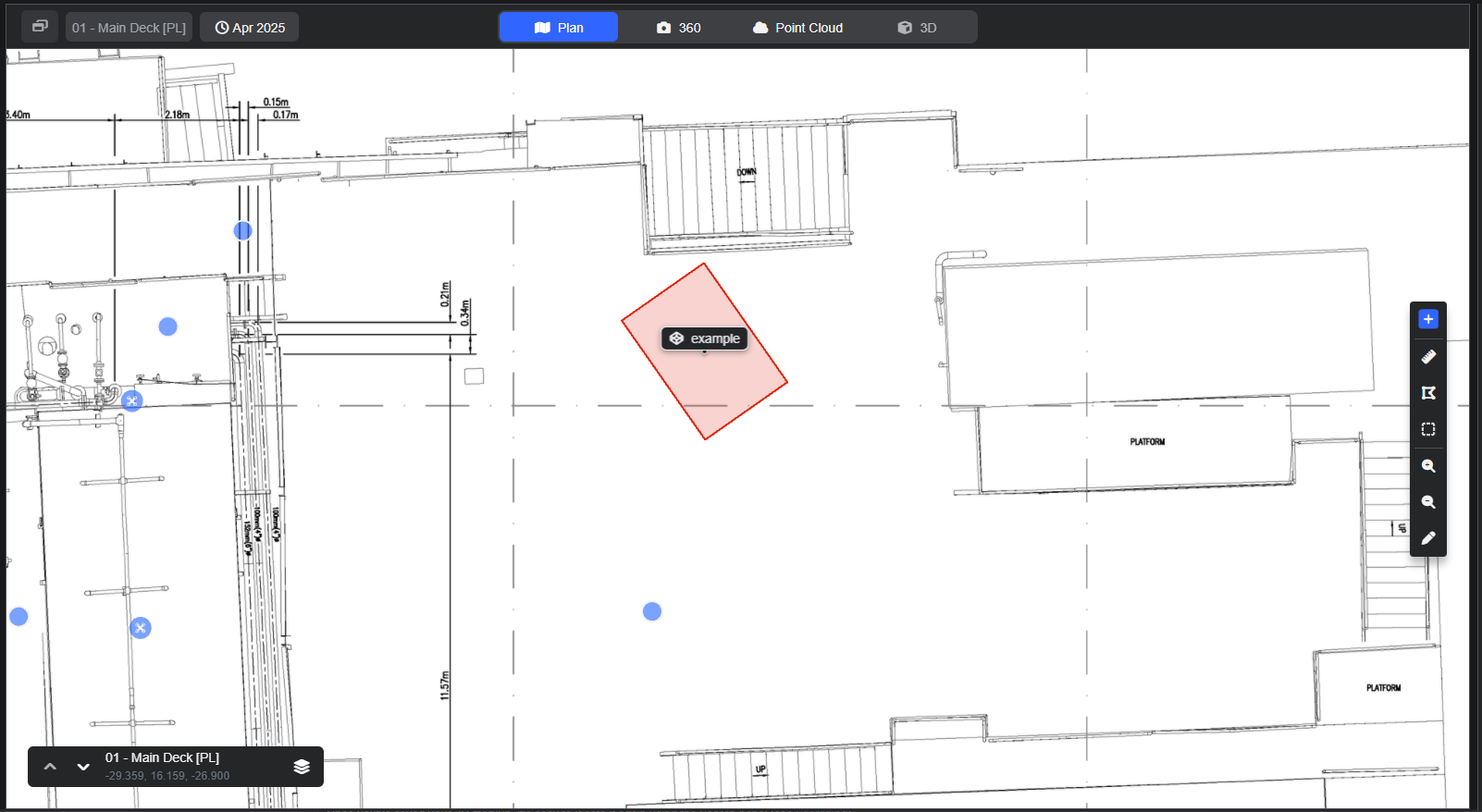
Once saved, the markup will also be shown on the Plan view.
Once you've saved your 3D markup, it's easy to locate it again using the Search panel (see Searching).
Editing 3D Markups.
You can switch to edit mode from multiple places.
- For quick edits, click the label at the centre of the markup and click on the pen icon.
- Right-click anywhere on the markup in the viewer window and select Edit Markup.
- Select the markup from the Markup Panel.
Editing in Plan Mode
- Move the markup by clicking directly on it and dragging it to a new position.
- Change the size by dragging the corners and edges or,
- Add new values into the width, length and height boxes.
- Adjust the rotation, if required.
- You can also edit other properties such as the colour, type, name, visibility and lock.
Editing in 360/Point Cloud Mode.
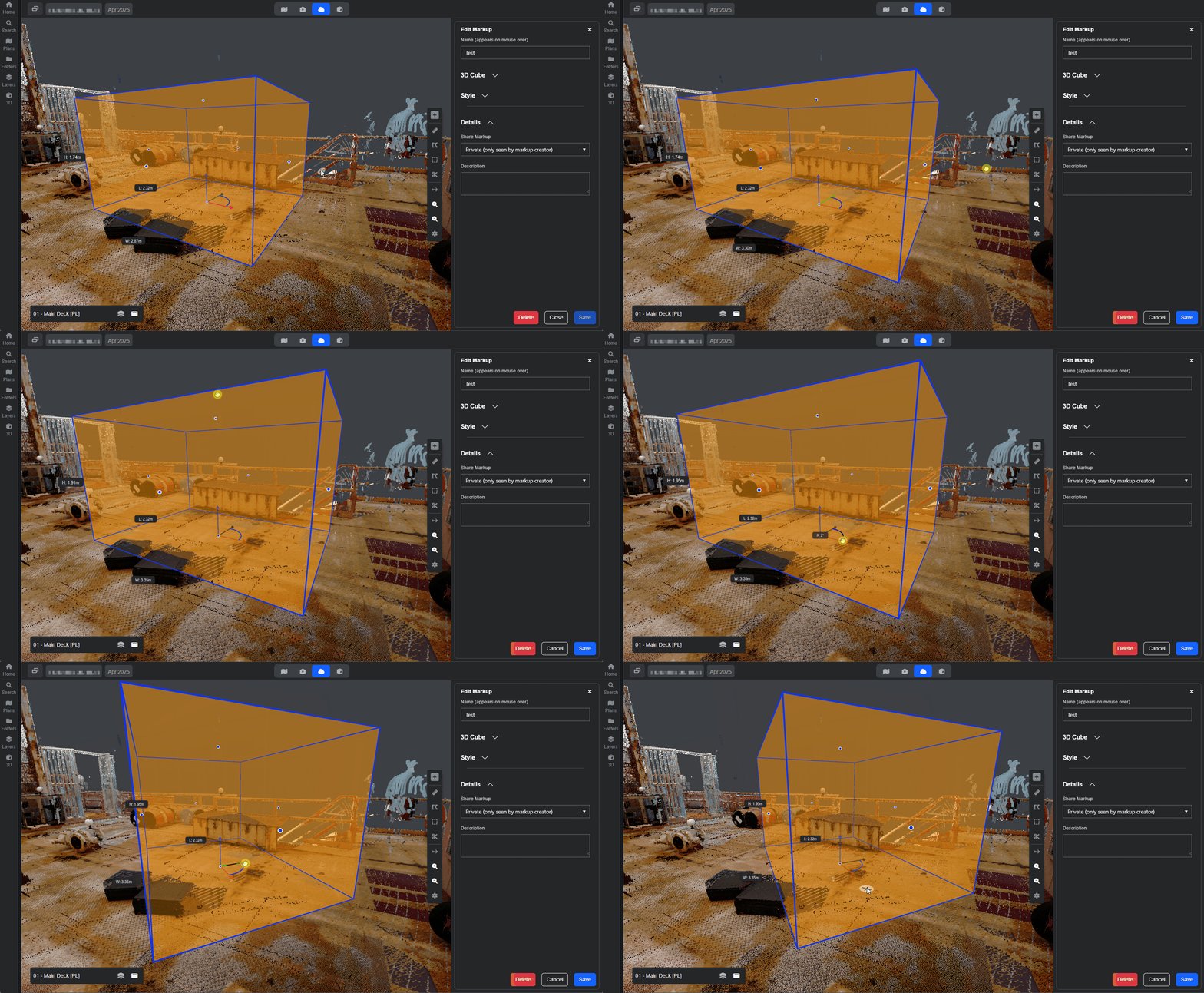
When in edit mode, there are a number of options for maniplualting the markup directly in the viewer window.
- Adjust the width, length and height.
- Alter the rotation.
- Move the cube in any of the X,Y or Z axis.
Now that you've learned how to add 3D Cubes, have a look at the Markup Tool page to explore other markup types.
Remember: If you are having trouble using any tool or feature in R2S please contact our support team here.