
3D Model Viewer (Beta)
Learn about the 3D model viewer and how to navigate.

The 3D Model Viewer allows you to easily switch between the 360° reality data and the 3D model, providing alternative perspectives of the facility and enhancing navigation. You can freely explore the 3D model and return to the 360° view at any time for a more comprehensive understanding of the layout and current condition of the area you’re viewing.
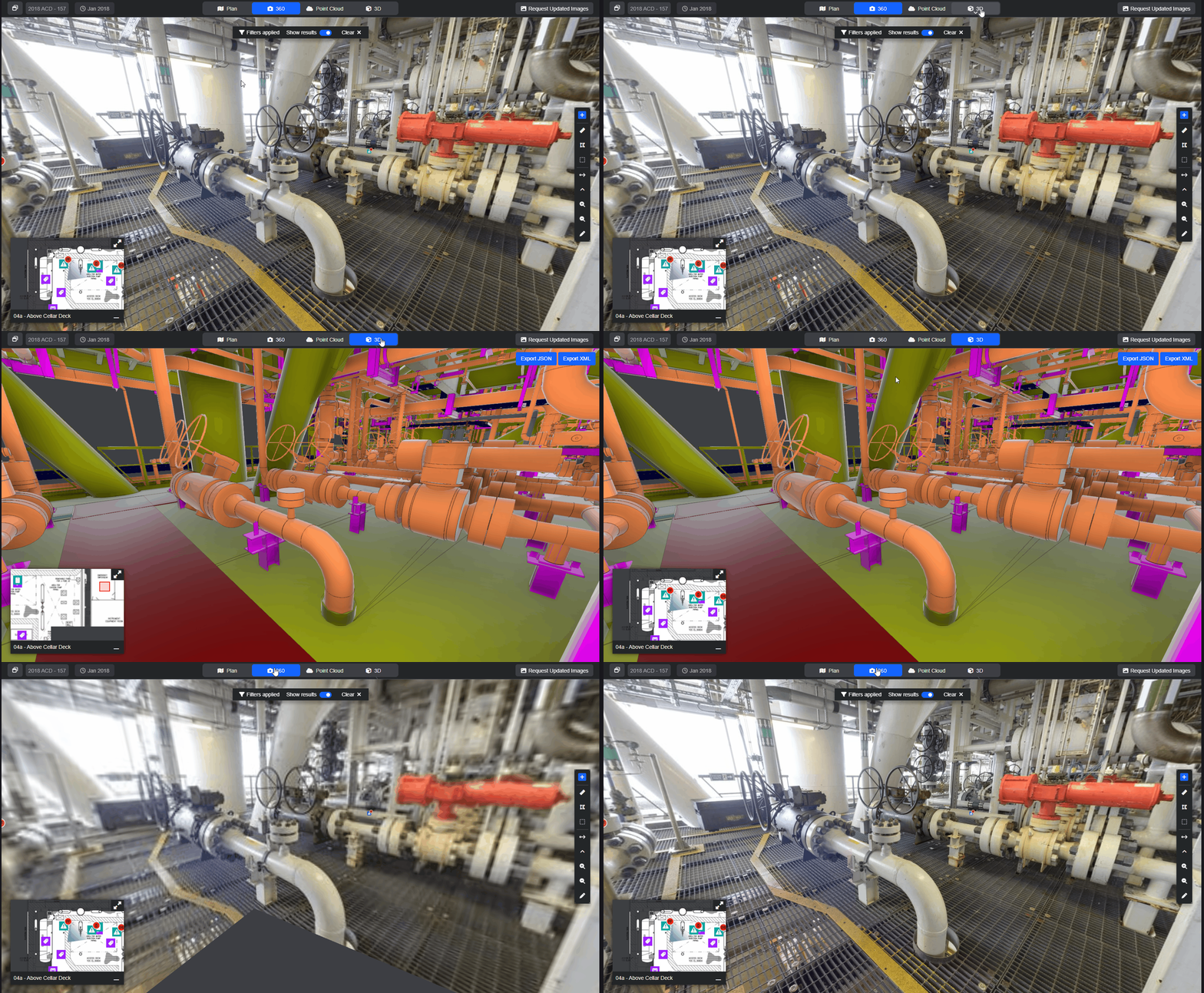
To navigate the 3D model, use one of these two options.
- Position-to-Position Movement – Move from location to location just the same as in the 360° mode.
- Free Navigation – For a more immersive experience, you can move freely throughout the model using either:
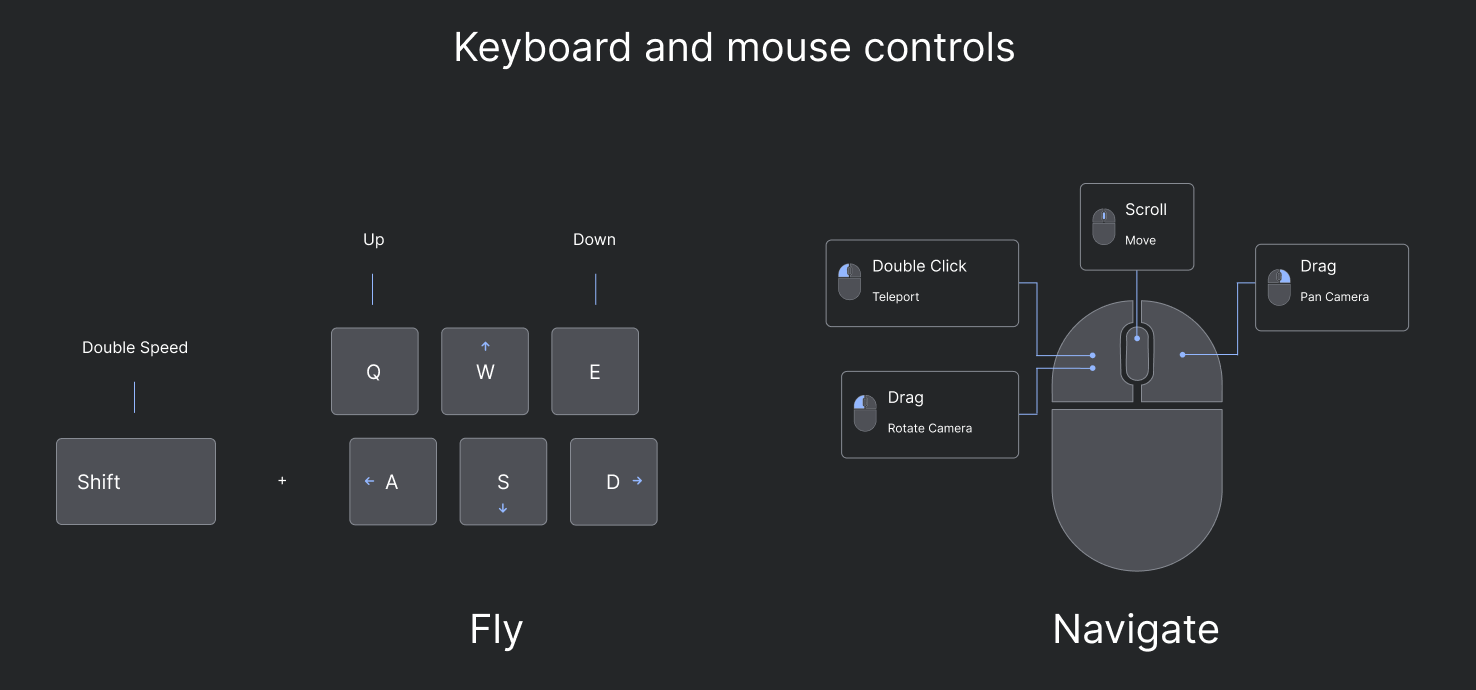
- Mouse Controls: Left click and drag to look around, right click to pan the view from left to right and use the scroll wheel to move forward.
- Keyboard Controls: Use the arrow keys or WASD keys to move in any direction, and combine with the mouse to adjust your view.
While navigating the 3D model, you can click the 360° button at any time to go to the nearest 360° image. Your view will remain aligned in the same direction, helping you stay oriented as you switch between perspectives.
Structure Tree & Navigation
- Hierarchical Exploration: Navigate complex models via the new 3D Panel structure tree.
- Fly-to-Object: Click the location marker to instantly zoom to specific components.
- Visibility Toggles: Quickly show or hide entire folders and objects using checkboxes.
Advanced Selection & Context Menu
- Universal Multi-Select: Use
ShiftorCtrl+Clickto select multiple items in both the tree and the 3D scene. - New Context Menu: Right-click any object to access:
- Isolate/Hide: Focus on what matters or remove clutter.
- Ghosting: View outlines of selected (or non-selected) objects for better spatial context.
- Find in Tree: Instantly sync your scene selection with the structure tree.
- Global Reset: Use Show All to restore default visibility in one click.
Instant Captures
- Seamless Screenshots: Capture your current view and either download the file or copy it directly to your clipboard for quick sharing.
Please note: this is a beta version of the 3D model viewer, if you have any feedback we'd love to hear it. Click here to submit an idea.